configuration via WEB interface
When the device is not in streaming mode, it provides the user with a Wi-Fi network named “OrisView_xxxxxxxx” which can be accessed via PC or Smartphone.
By default, the Wi-Fi network password is “ov123456”; please change it as soon as possible.
NOTE

CHECK THE INSTRUCTIONS FOR YOUR PC OR SMARTPHONE TO CONFIGURE THE WIRELESS NETWORK.
NOTE
IT IS RECOMMENDED TO USE THE GOOGLE CHROME BROWSER FOR AN OPTIMAL USER EXPERIENCE.
Once connected to the OrisView device's Wi-Fi network, you can access the configuration page directly from the web browser by typing the following in the browser address bar: http://172.16.0.1:8080/
and wait for the initial page to load as shown below:

The home page shows the main information about the network and streaming service configuration, such as:
Wi-Fi Network Parameters for Video Streaming
- Type of Wi-Fi network configuration (Hotspot or Station)
- SSID, i.e., Wi-Fi network name
Video Streaming Configuration Parameters
- Resolution (FHD, HD, VGA)
- Frames per second (60, 30, 15)
- Maximum number of connected clients
Using the left sidebar, you can select the different menu items to navigate the Console configuration. The sidebar menu includes the following entries:
- Home, which returns to the screen just described
- Connections
- Streaming
- Archive
- Web Client
The pages listed above will be described below.
Connections Page
On this page, you can configure the wireless mode for video streaming transmission. It is possible to configure the device to send the video streaming over the default network (Hotspot) or over a different Wi-Fi network.
Enable Hotspot
The Hotspot mode is the default. Client devices must connect to this Wi-Fi network to receive the video stream.
Enable Wi-Fi
By enabling this function, it will be possible to configure the console to connect to a Wi-Fi network and send the video streaming on that network. Clients will need access to the configured Wi-Fi network to receive the video stream.
NOTE
IF YOU WANT TO USE THE HOTSPOT AS THE NETWORK TO START STREAMING ON, NO CONFIGURATION CHANGES ARE NEEDED.
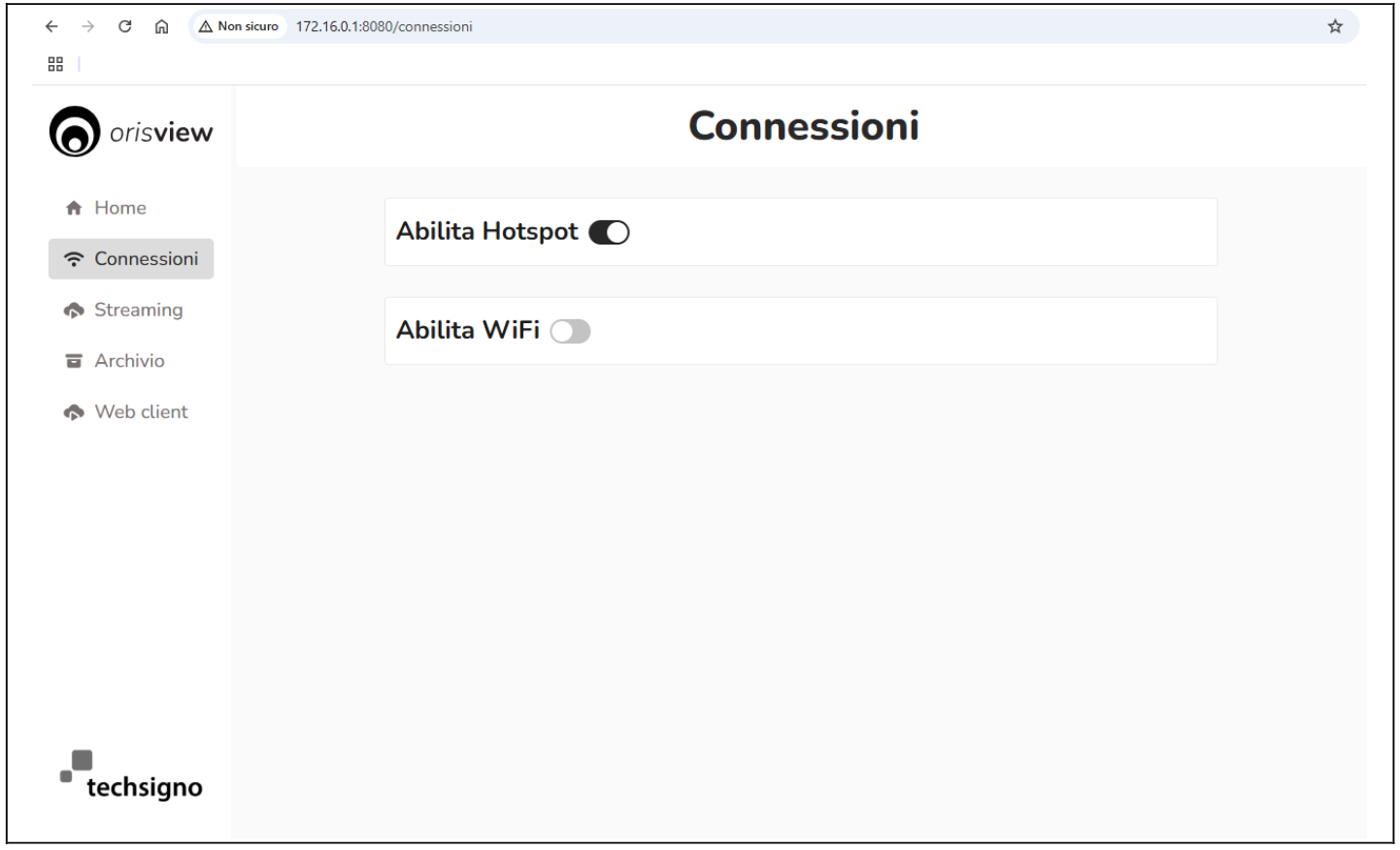
In Wi-Fi mode, when the streaming mode starts, the device will disable its “OrisView_xxxxxxxx” Wi-Fi network, connect to the specified Wi-Fi network, and start streaming on that network.
WARNING
IF THE WI-FI MODE IS ENABLED, WHEN PRESSING THE VIDEO STREAM START BUTTON THE HOTSPOT NETWORK WILL BE DISABLED AND IT WILL NOT BE POSSIBLE TO ACCESS THE CONFIGURATION MENU PAGES. WHEN THE VIDEO STREAMING IS STOPPED, THE HOTSPOT NETWORK WILL BE ENABLED AGAIN AND THE CONFIGURATION MENU PAGES WILL BE AVAILABLE AGAIN.
Wi-Fi Network Configuration
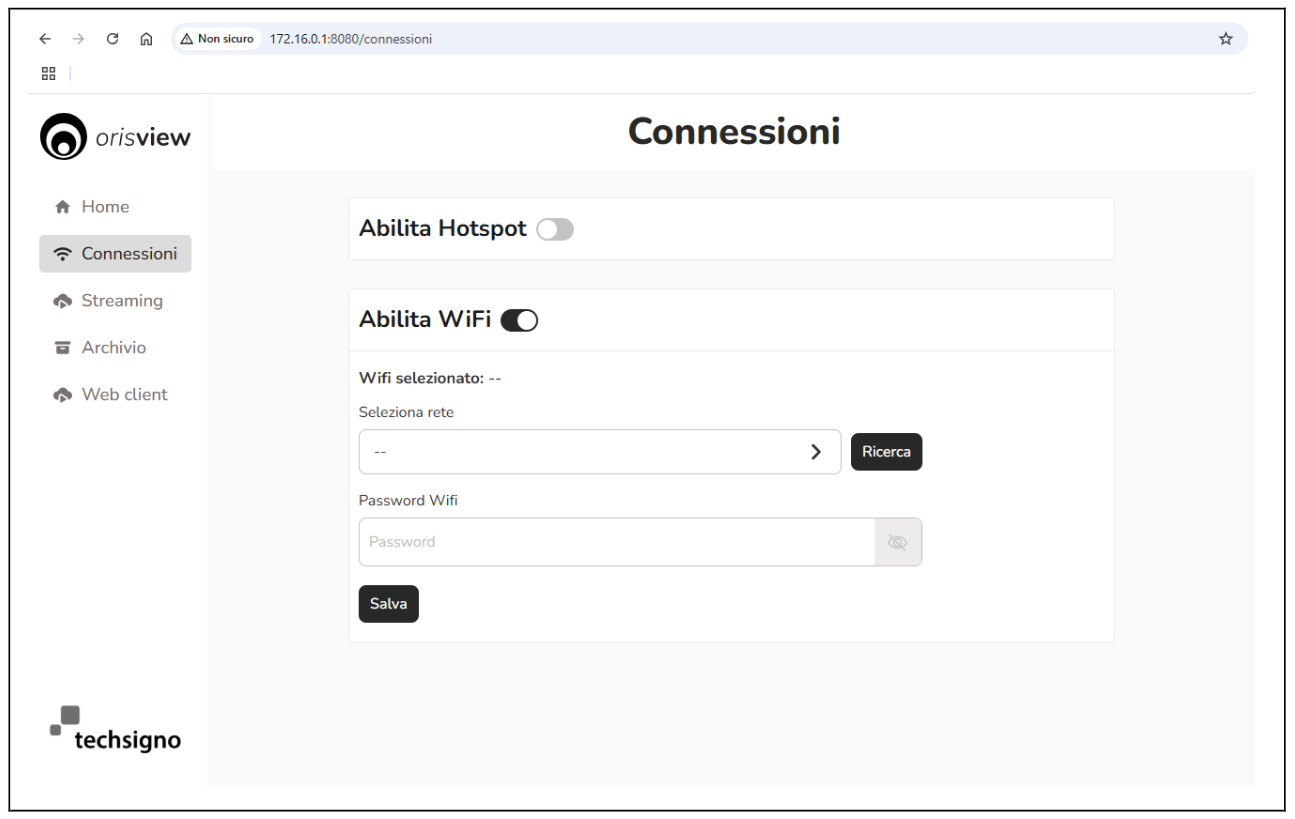
To connect the console to a Wi-Fi network, after selecting “Enable Wi-Fi” proceed as follows:
- Press the “Search” button
- From the dropdown menu select one of the available Wi-Fi networks
- Enter the password for the selected network
- Save by pressing the “Save” button
WARNING
DURING THE SCANNING FOR AVAILABLE WI-FI NETWORKS, THE HOTSPOT NETWORK WILL BE TEMPORARILY TURNED OFF. MAKE SURE THAT AT THE END YOUR PC OR SMARTPHONE RECONNECTS TO THE HOTSPOT NETWORK.
Streaming Page
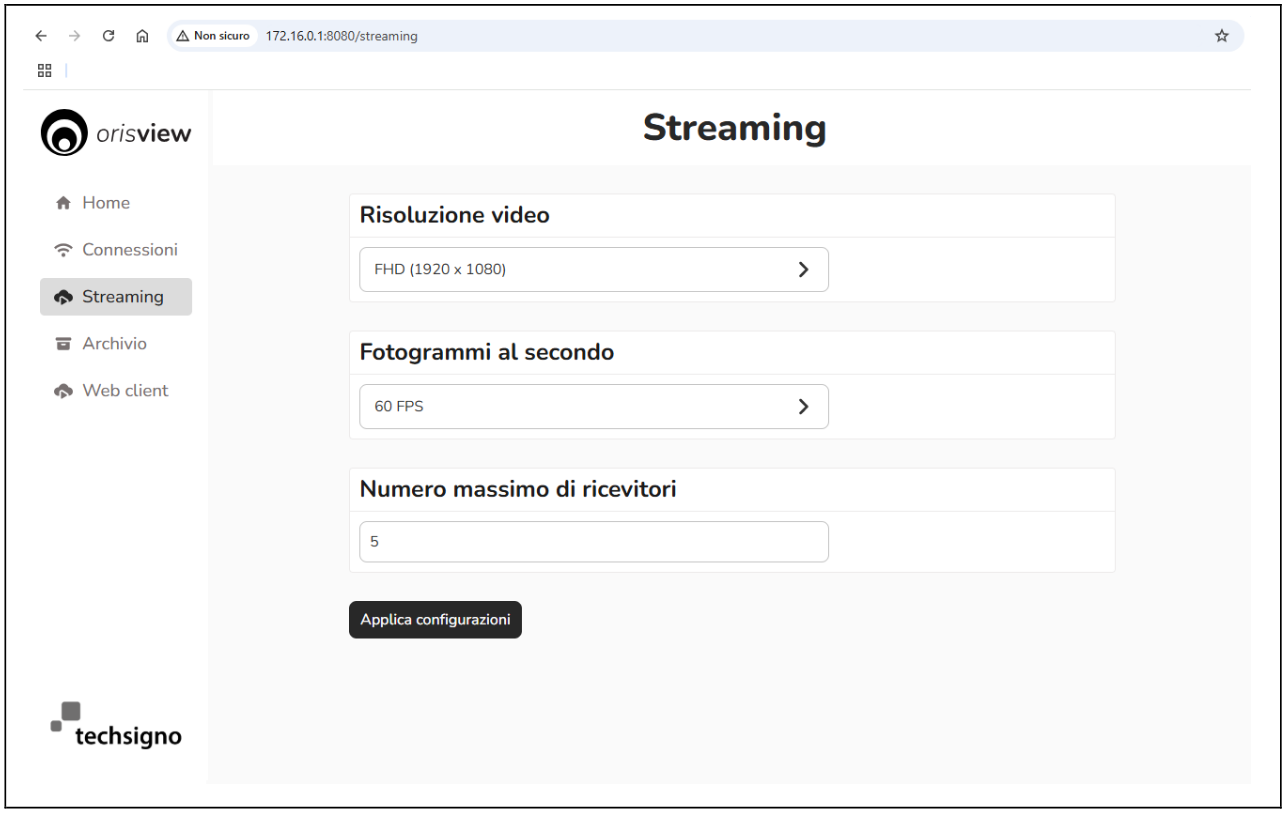
On this page, you can select different video streaming profiles. Specifically, you can modify the resolution, frame rate, and maximum number of connected clients.
NOTE
THE VIDEO STREAM QUALITY IS HIGHLY DEPENDENT ON THE NETWORK INFRASTRUCTURE AND THE PRE-EXISTING DATA TRAFFIC ON THE NETWORK. PERFORMANCE DEGRADATION MAY BE CAUSED BY NETWORK CONGESTION.
NOTE
THE NUMBER OF CONNECTED CLIENTS AND THE QUALITY OF THEIR CONNECTION SIGNIFICANTLY IMPACTS THE VIDEO QUALITY. IN HOTSPOT MODE, IT IS RECOMMENDED NOT TO EXCEED 2 CLIENTS, AND IN WI-FI MODE NOT TO EXCEED 3 CLIENTS.
NOTE
IF MORE THAN 3 CLIENTS NEED TO STREAM SIMULTANEOUSLY, USE A SPECIFIC DEVICE TO REPEAT THE VIDEO STREAM.
Archive Page
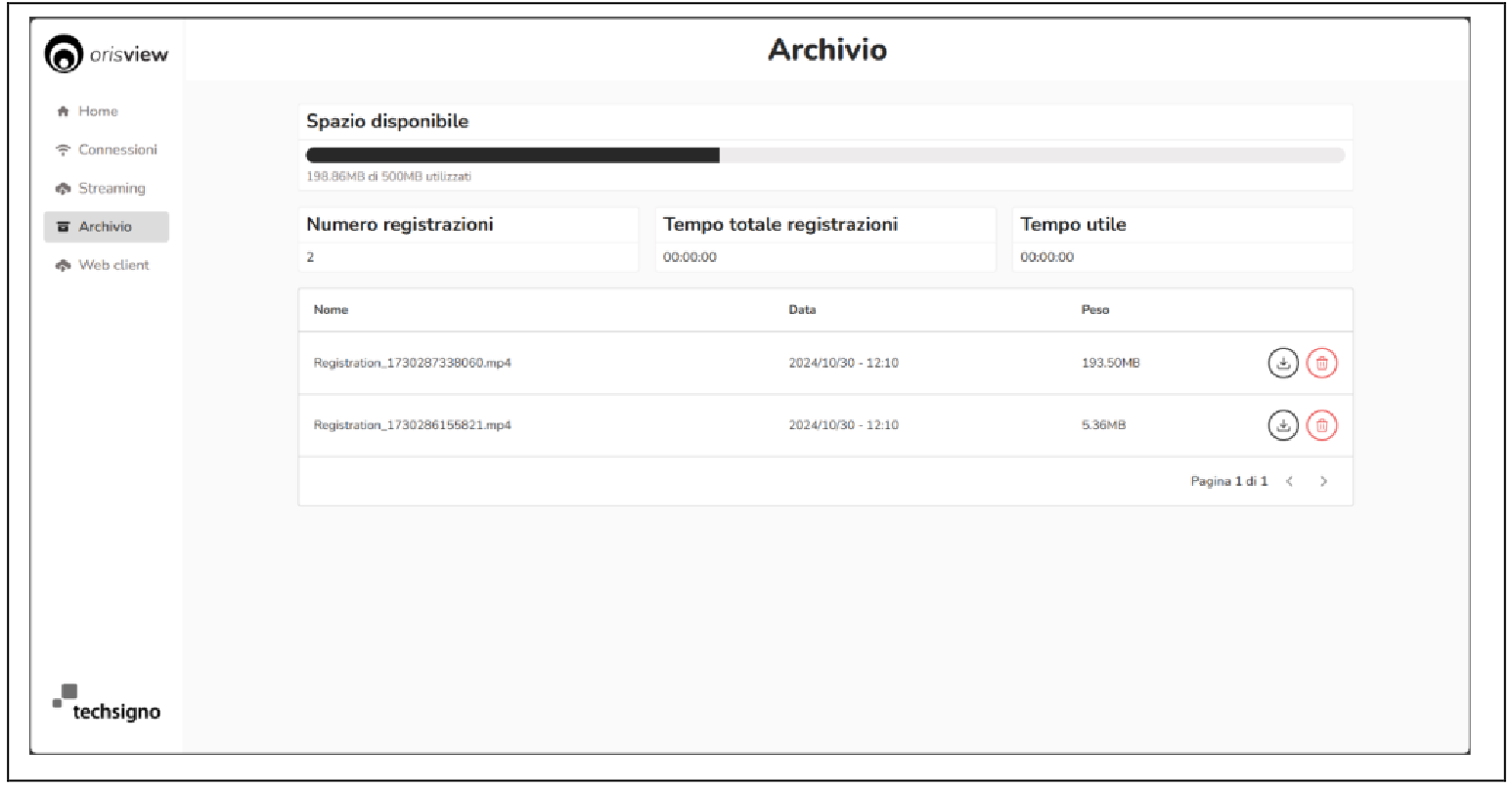
On this page, you can manage the archive of recordings stored inside the device. The list of recordings stored on the console’s internal memory is displayed here, along with the total recording time and the available recording time for future recordings. The available operations are:
- Download the video by clicking the icon

- Delete the video by clicking the icon

Web Client Page
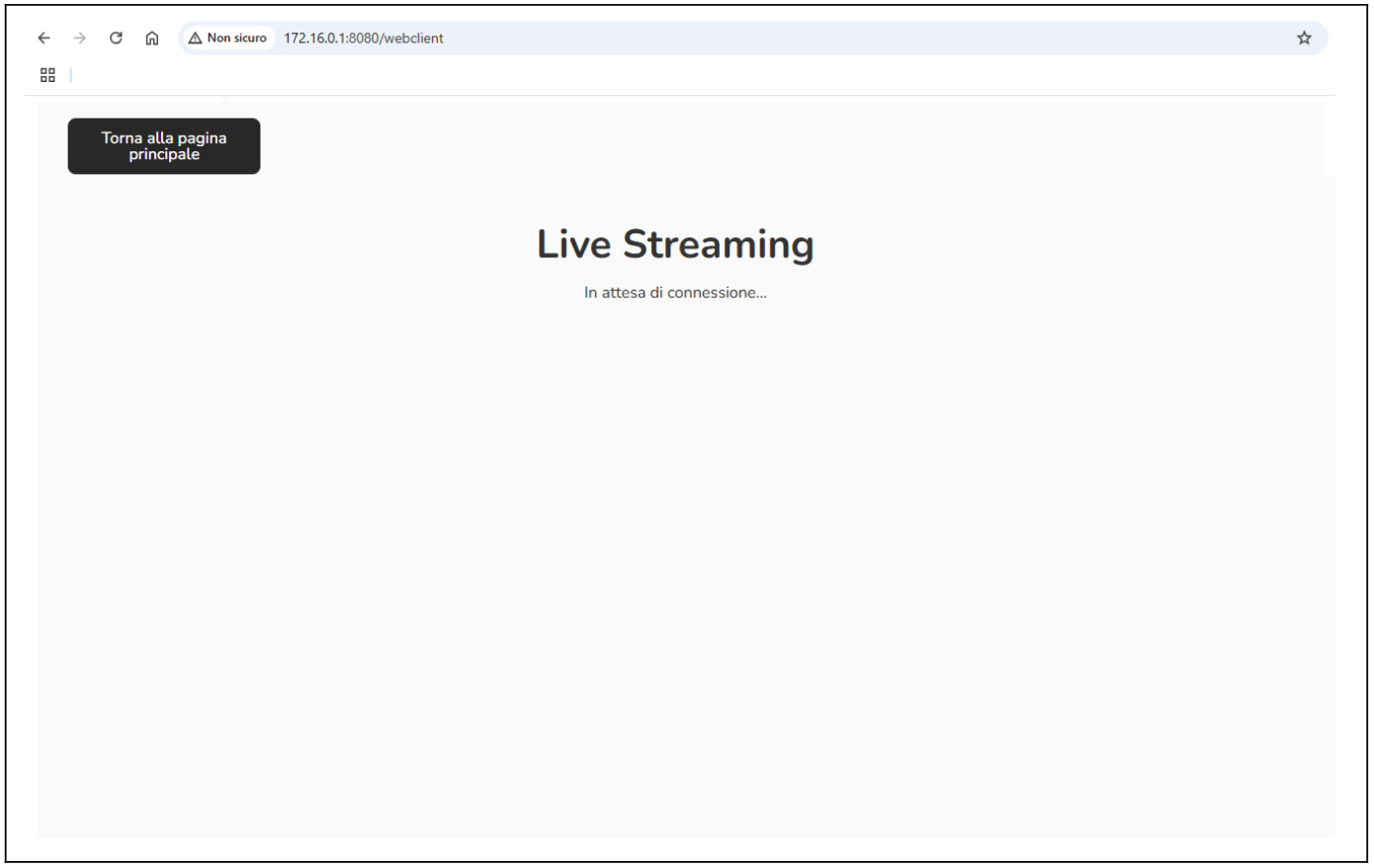
In Hotspot mode, after starting the video streaming, it is possible to view it on this page.