Usage
Warnings
WARNING
THE MEDICAL DEVICE CAN ONLY BE USED AFTER READING THIS MANUAL.
Problems, Causes, and Remedies
| Problem | Cause | Remedy |
|---|---|---|
| The Console does not turn on | Battery drained | Connect the power adapter and start charging (the Console display will show the battery charge status). If the green LED does not start blinking, check the power adapter. |
| The Console does not turn on | No power supply | Verify that the plug is connected to a compliant and powered electrical outlet (the Console display will show the battery charge status). If the ON LED does not blink, contact technical support. |
| The 3D Visor remains off | No connection with the Console | Connect the Helmet cable to the Console. If the cable is properly connected, turn the device off and on again. |
| The 3D Visor remains off | No communication with the Console | With the Helmet connected to the Console, turn off and on again. If the battery is charged and the cable is properly connected but the visor remains off, contact technical support. |
| Recording does not start | Storage space full | Download the recordings via the appropriate interface and delete them to free up recording space. |
| Video is not transmitted | Connection not established | If the device is set to connect to an external network, verify that the network coverage in the room is sufficient. |
| The spotlights do not turn on | Check connection with the Console | Disconnect and reconnect the connection cable to the Console. |
| The visor is lit but images are not visible | Check the image | Make sure the camera is focused on an object. If no movement occurs even when focusing the camera, contact technical support. |
Control Devices and Indicator Lights
There are no control devices or indicator lights on the Helmet, only icons displayed in the 3D visor after the Console has completed initialization (the Console displays on its screen the Helmet with the message Orisview Ready).
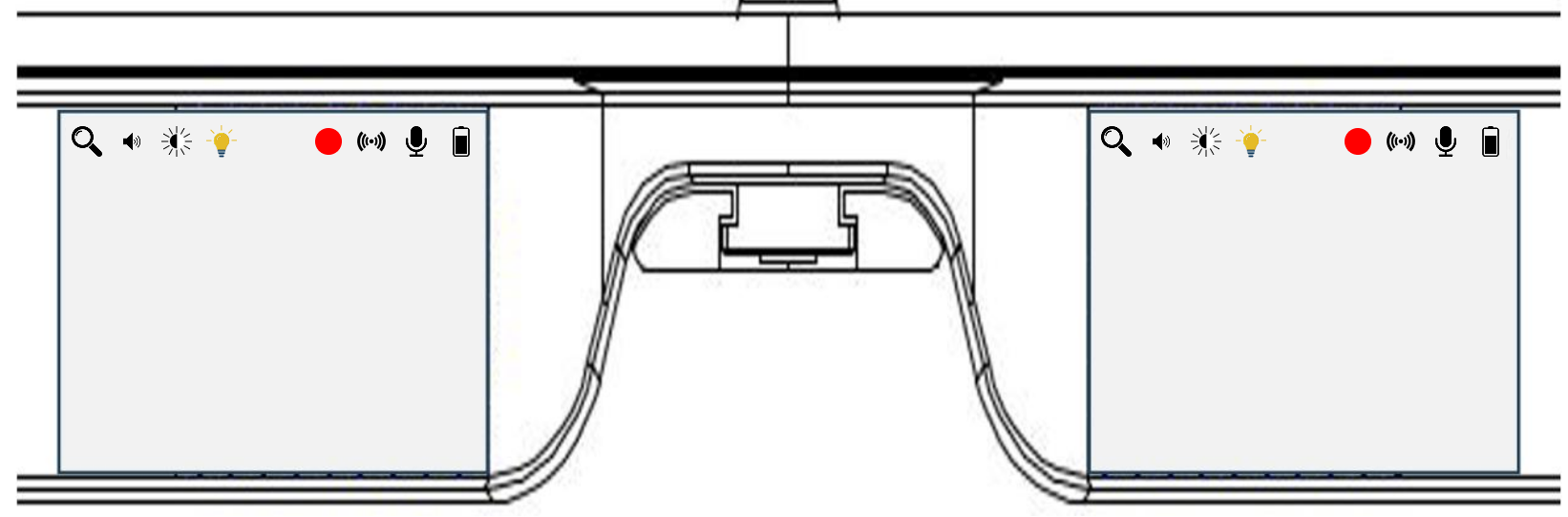
| Icon | Description | Icon | Description |
|---|---|---|---|
 |
Number of side bars ranging from 1 to 5 (magnification level) |  |
Present if active, absent if inactive |
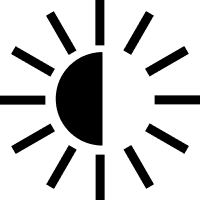 |
(If available) Indicates the adjustable brightness level of the visor |  |
Icon without a bar: microphone on; with a bar: microphone off |
 |
Indicates on/off status (icon present/absent), light type (white or yellow), and brightness level (icon more or less filled) |  |
Shows the remaining battery charge level |
 |
Present when the system is recording |  |
Represents current audio level, which may vary based on volume or microphone status |
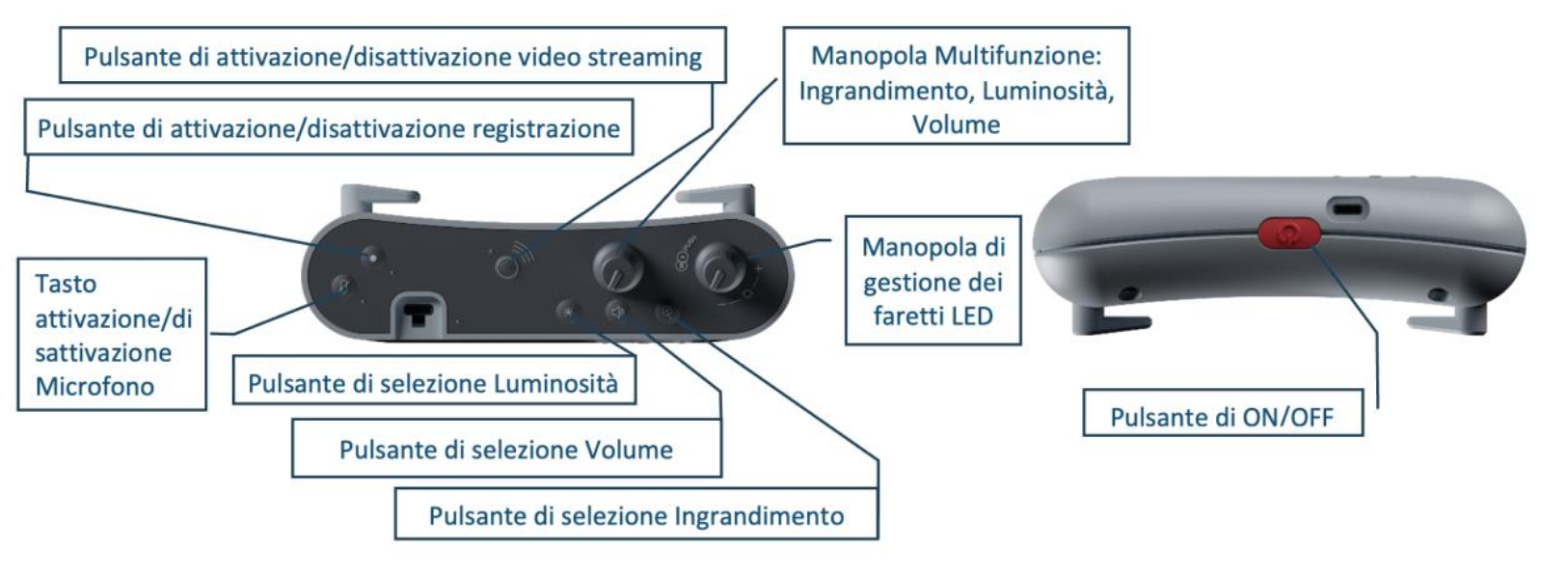
The Console includes the following control devices:
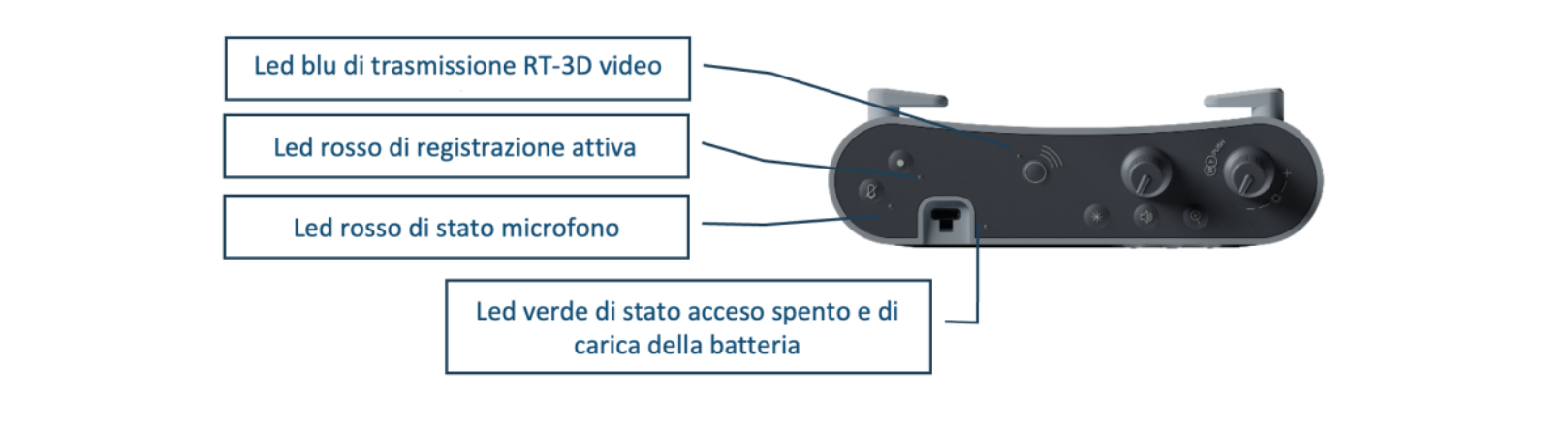
The Console also includes the following indicator lights:
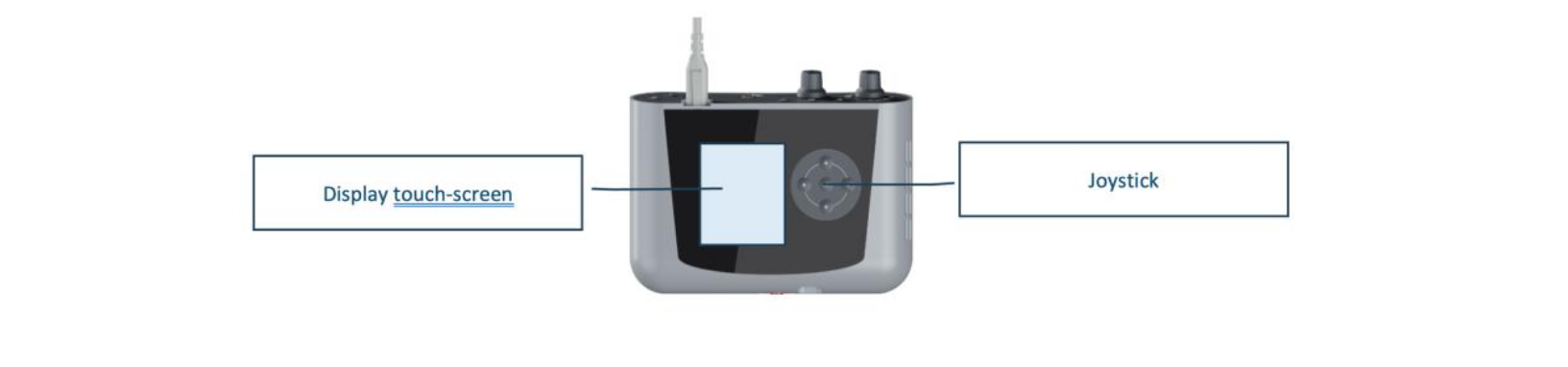
The Console features an operator interface composed of a 2.8” touch screen display and a joystick:
Contraindications
No contraindications have been identified.
Side Effects
The medical device does not produce any known side effects.